Mobirise Website Builder

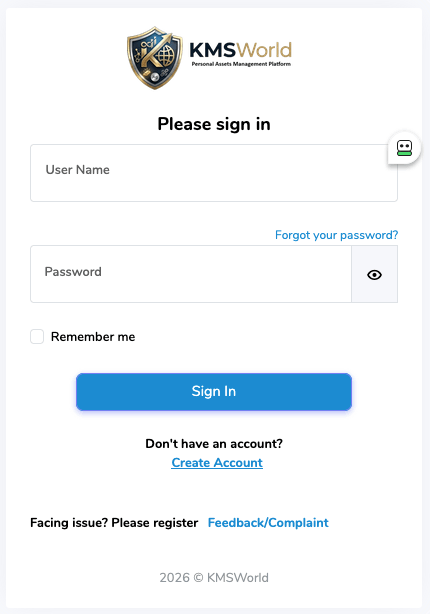
Create account 

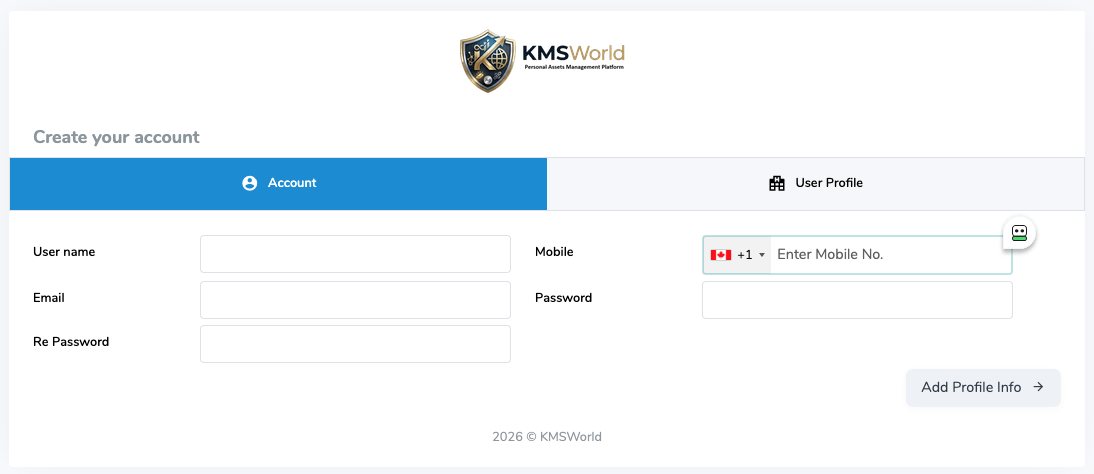
To start with KMSWorld, click the Create Account link. The account will be valid with a minimum of contact data. Everything is done to maximize privacy and protect your data. Username, password and e-mail are needed to make the account work. The rest is optional. See more about e-mail below.

If hackers ever break into the database, there will be no connection between your true identity and the list of holdings.

Mobirise Website Builder

Create account, make it private!

Under the Account tab, enter a username and create a Password. To create an account, you need to enter at least three pieces of information. Login name, password and e-mail address.
Phone number is optional. E-mail address is needed for future communications.
For maximum privacy use ambiguous e-mail, possibly created for this service only. We recommend Proton or Tuta secure e-mails or any other e-mail provider you trust.

jamesbond@proton.com will work just fine as long as you can actually receive and read emails under that name/account.

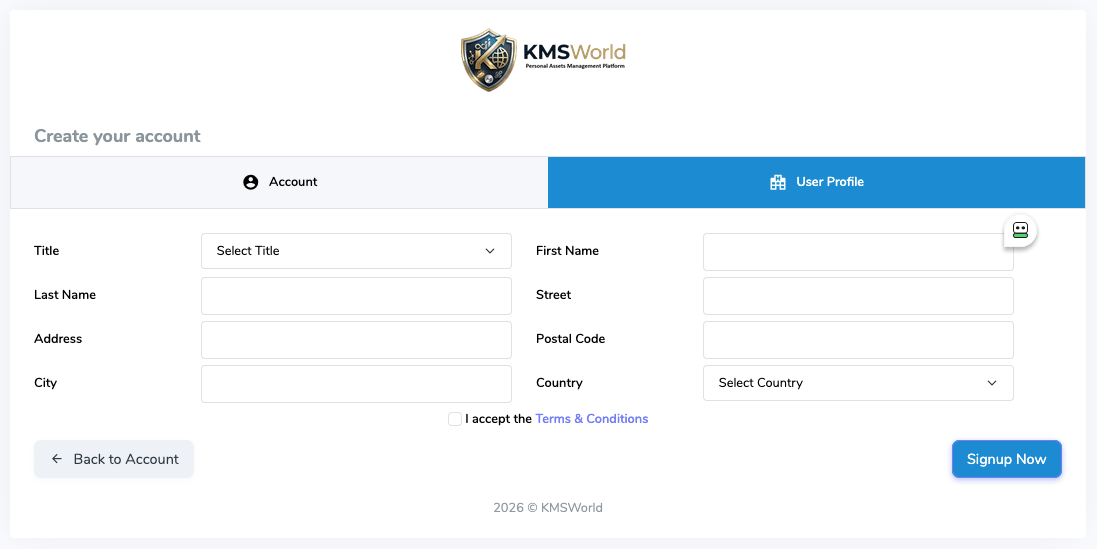
Under the User Profile tab, enter other details or leave blank. Completely your call. Accept Terms and Conditions and submit.

KMSWorld dashboard

Building a wealth, one asset at a time.

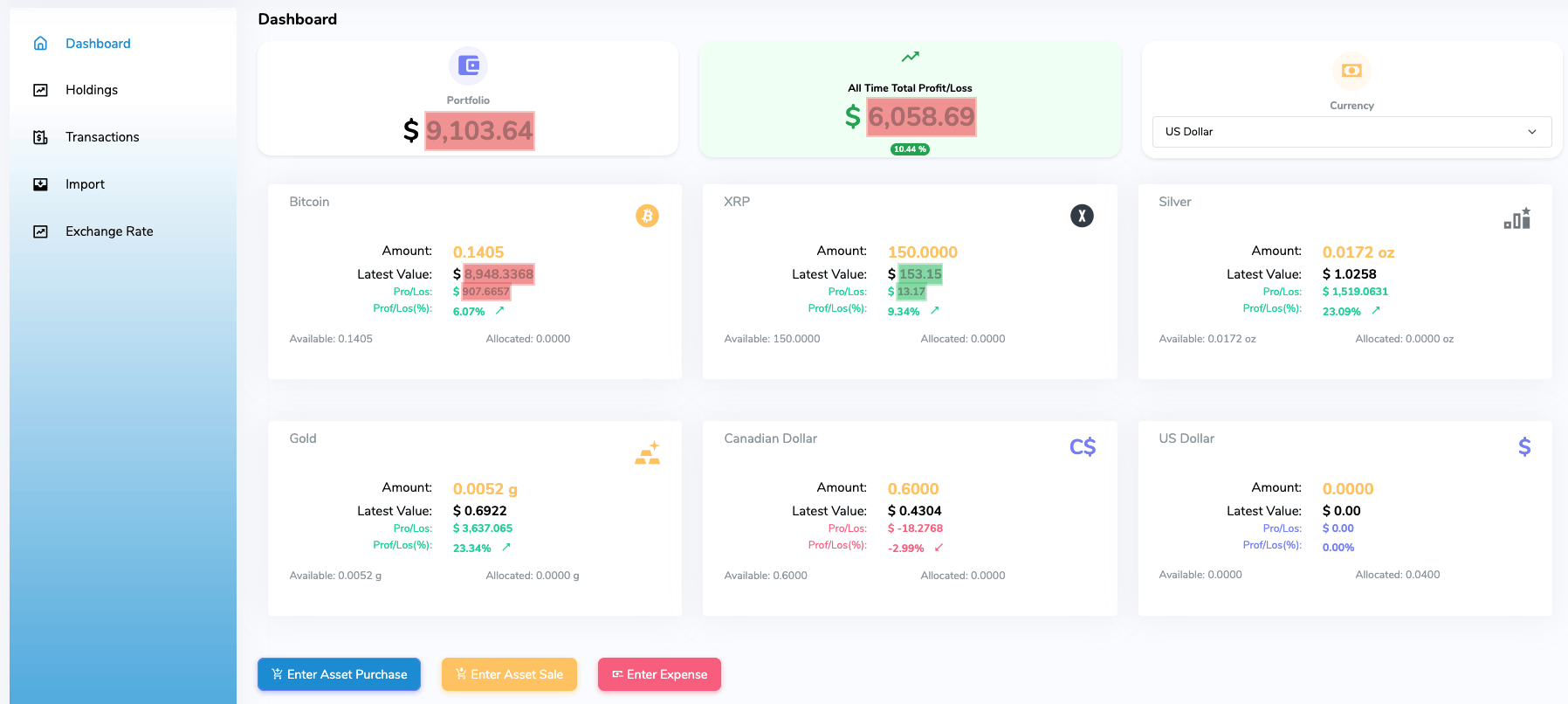
When you log into your account, this is what you will see first. This is a KMSWorld dashboard page. All your assets, portfolio value, gains or losses are shown in numbers, easy to understand and follow. In the upper-right corner are account menus. The total user count is also in the upper-right corner, keeping count of subscribers.
Total portfolio value is in the first row at the top. In the same window, you will see total expenses in red. Your gains are shown as a currency value plus percentage. Next to it is a drop-down menu with many currencies to choose from. By clicking any of the currencies, DB will instantly recalculate all values into the new currency. 

KMSWorld main main screen

Stitching dreams, one asset at a time.

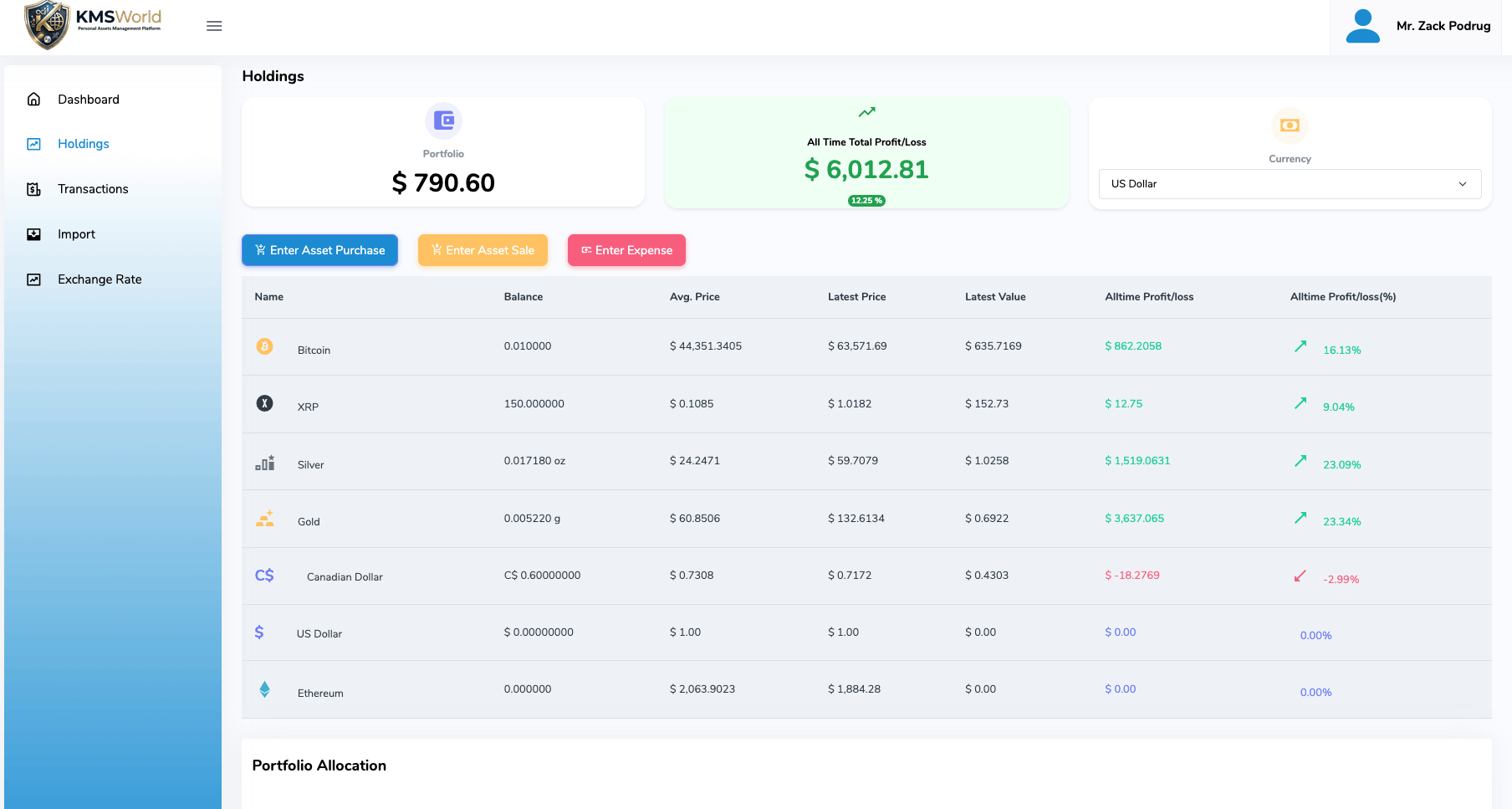
The centrepiece of the dashboard is your assets. If you upload Kinesis KMS transactions, they will be presented automatically for you with relevant calculations and other details. This screenshot was made at the moment of assets update. That update is done every 10 seconds as long as you have this screen open.
For users who buy and sell assets outside the Kinesis system, there are utilities to keep track of those actions as well. If you buy silver coins in your local coin shop, it adds to your overall portfolio. When you enter manual asset purchases, if it is a new asset, it will create a new asset details box. How do you do that? 

Manual transaction entry

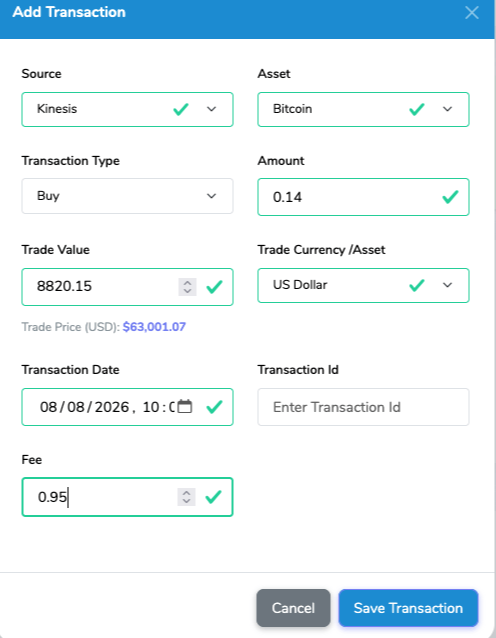
Buy asset
Buy Asset
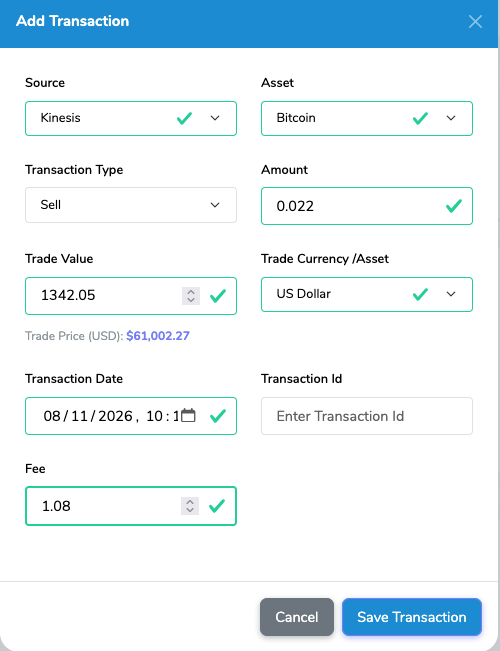
Fill up presented form by entering the source of the asset, the asset, the amount of the asset, the total amount paid, selecting the currency, transaction date and time, optional transaction ID and finally the fee amount (if any). Save.


Sell asset
Sell Asset
It is identical to Buy Asset, but this time you are selling it. Enter details as described in Buy Asset window. Select pertinent details, date, currency and fee. Click Save, and you are done. 
KMSWorld expense form
Enter Expenses
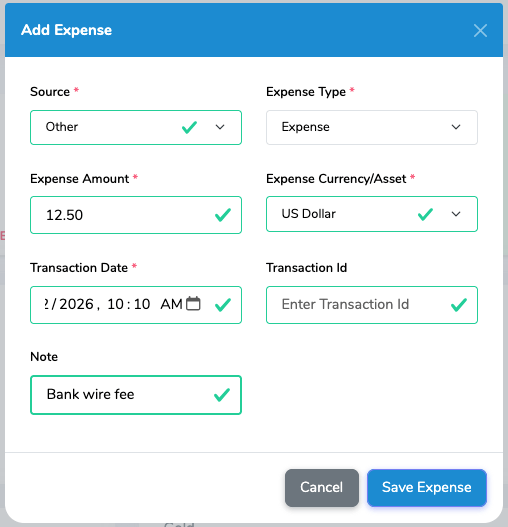
This button gives you possibility to enter possible expenses that you had when buying an asset in the physical world. Use it to enter postage, shipping, taxi ride to LCS, insurance, bank safety box rental ...
Holdings, gold, silver, crypto

Holdings. Your gold, your silver, your crypto.

Not much description is needed. Everything is in plain sight. Every single holding that you presently have with profit or loss indicators. Trends are obvious to the naked eye.
Not satisfied with asset performance? Login into your Kinesis KMS account and reshuffle assets in exchange. Trade 24/7 from the comfort and safety of your home to your best advantage.

Holdings graphics

Holdings presented visually.

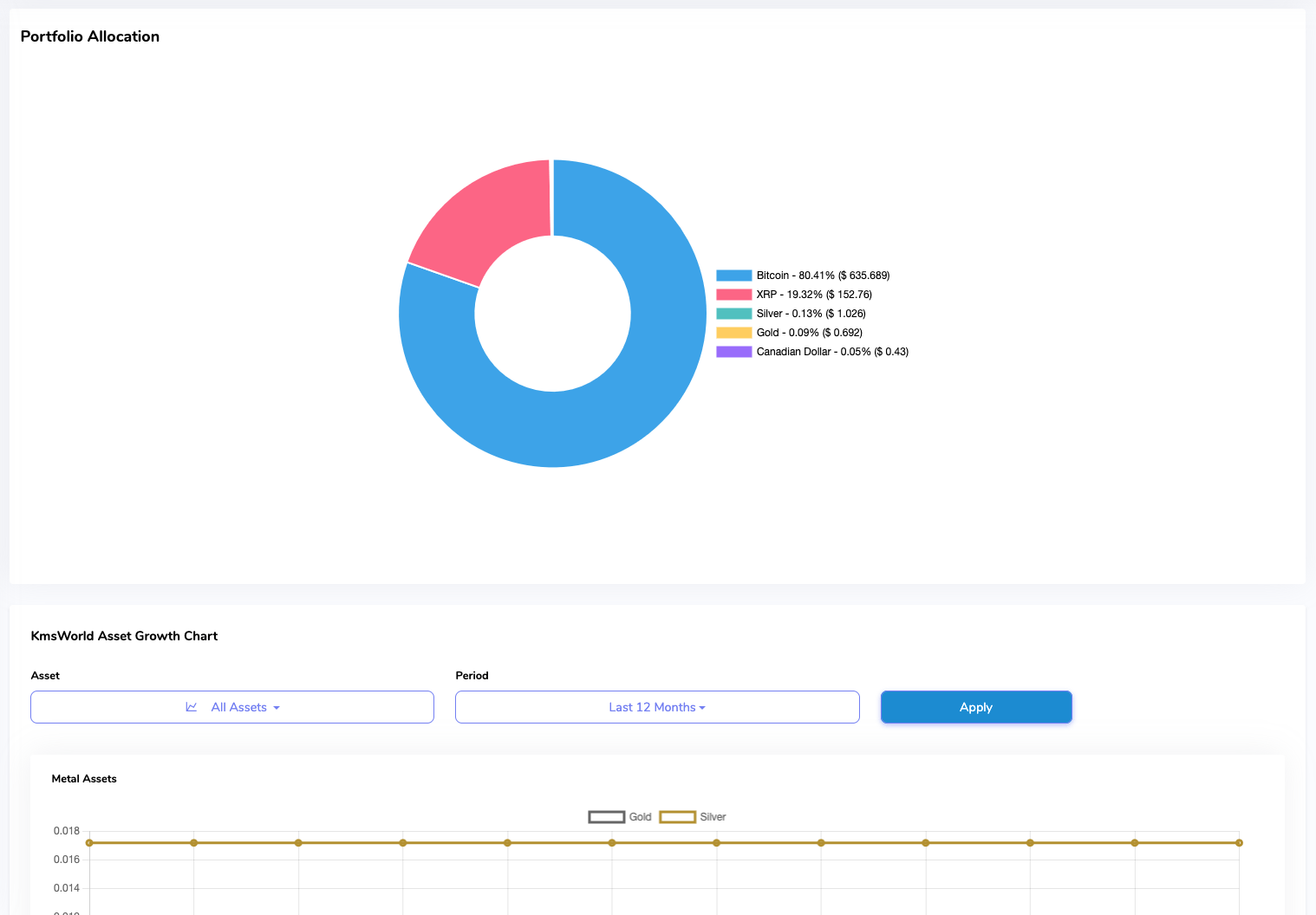
It is not a wheel of hope. It is a wheel of fortune you created with your vision and hard-earned money, translated into hard assets. Your holdings.

Mobirise Website Builder

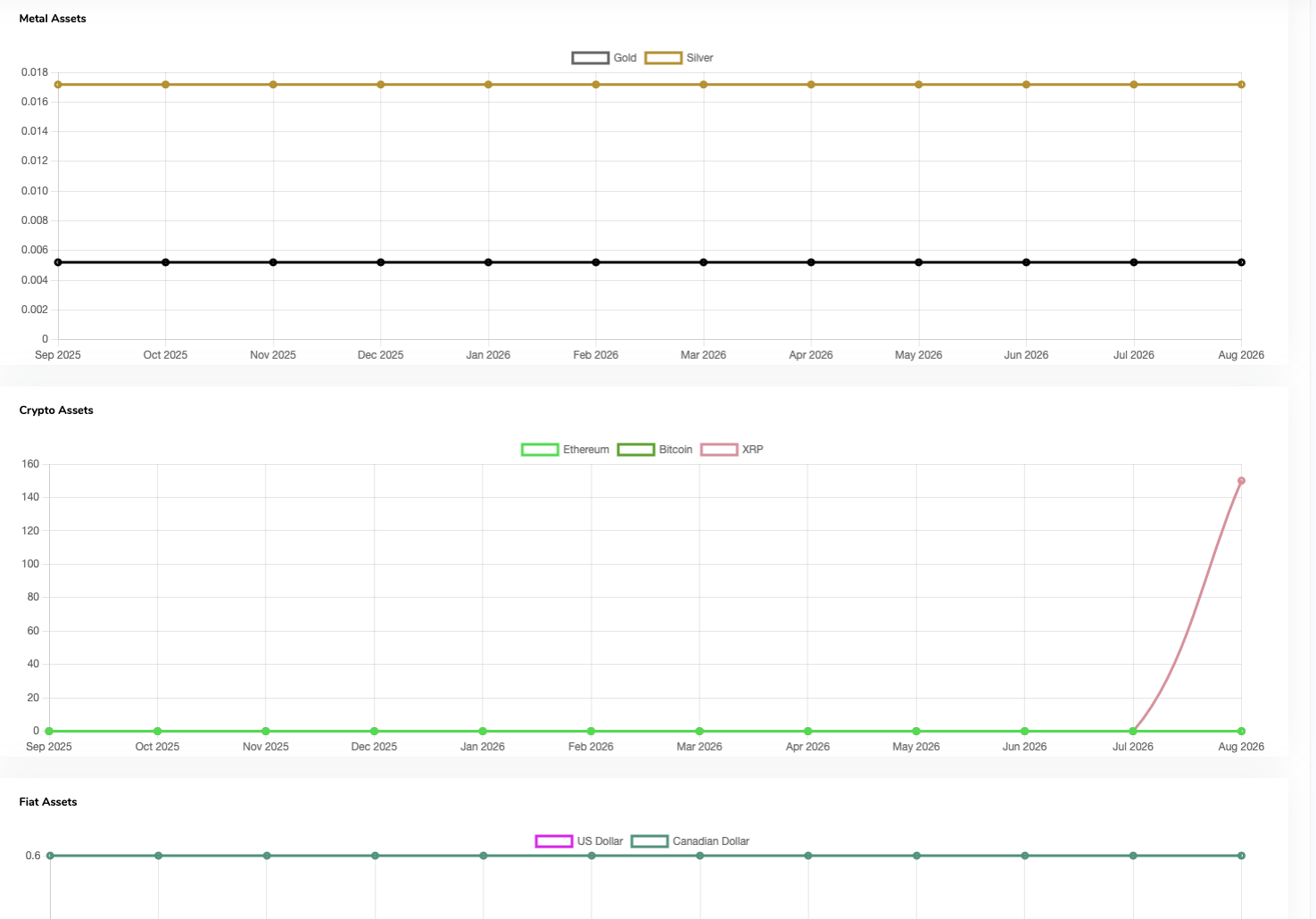
All three groups of assets shown as graphs.

Report engine creates and updates those graphs accordingly.

KMSWorld transactions

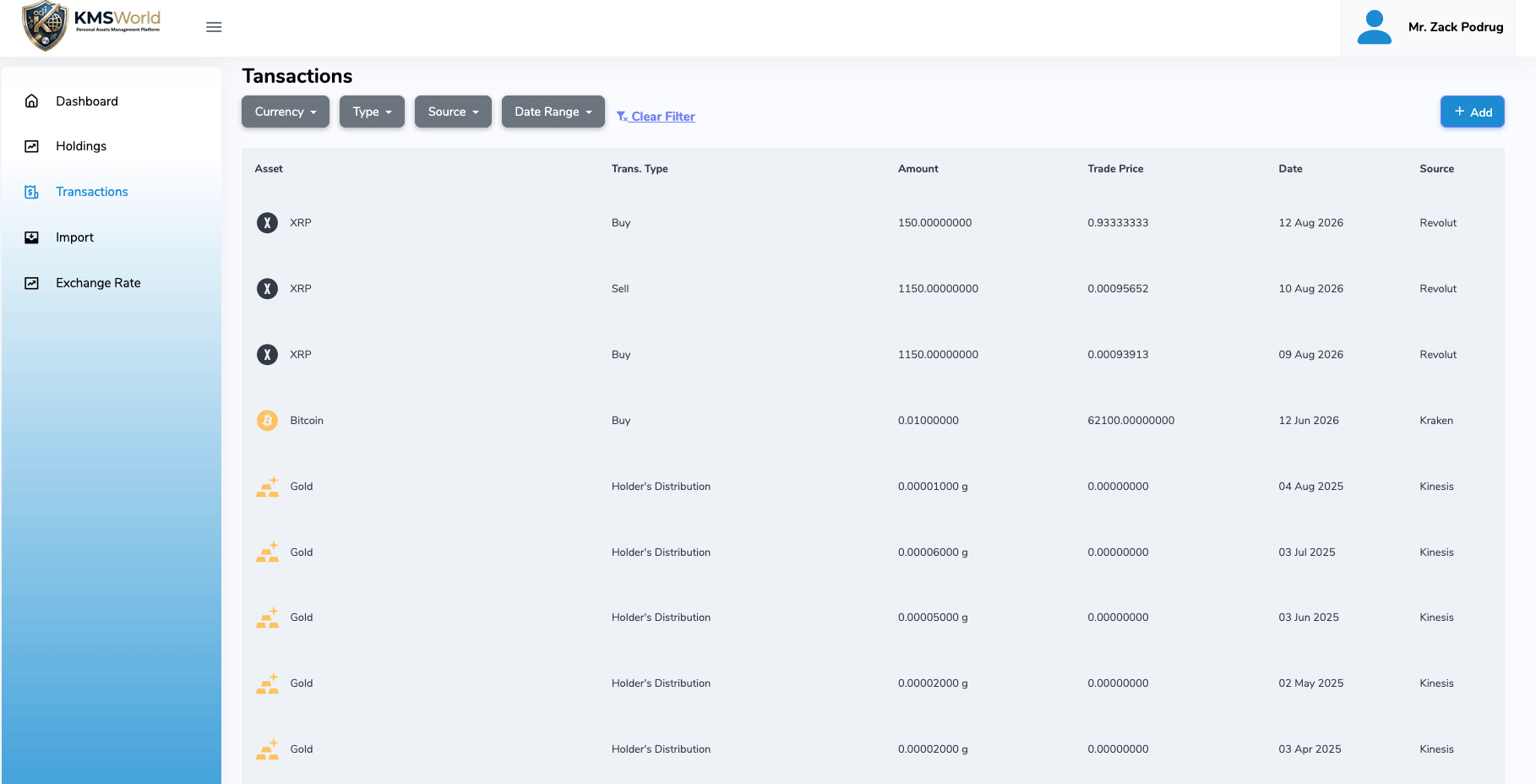
Transactions.

Search for particular transactions using search criteria on top. DB will return filtered results for your review. 

Importing Kinesis transactions

Import transactions from Kinesis KMS.

This menu allows importing all transactions from the Kinesis KMS system. Before you can do that, you have to go into Kinesis KMS, open it as a tab in the same browser and under the profile menu in the upper-right corner, click on Settings. You will get the following menus:

Kinesis KMS settings

Click API keys

You will get the following screen:

Kinesis API keys setup menu

Copy keys into KMSWorld import screen

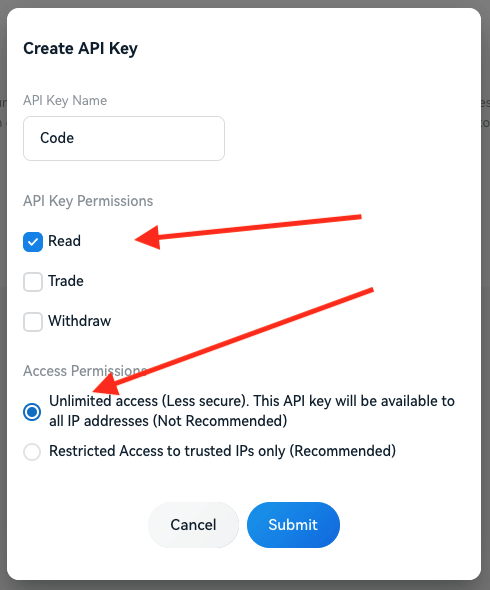
First, select Read (only) selection. That means KMSWorld software will be allowed to read transactions only, not write back anything. Leave Unlimited IP access for now. We might use restricted access later.

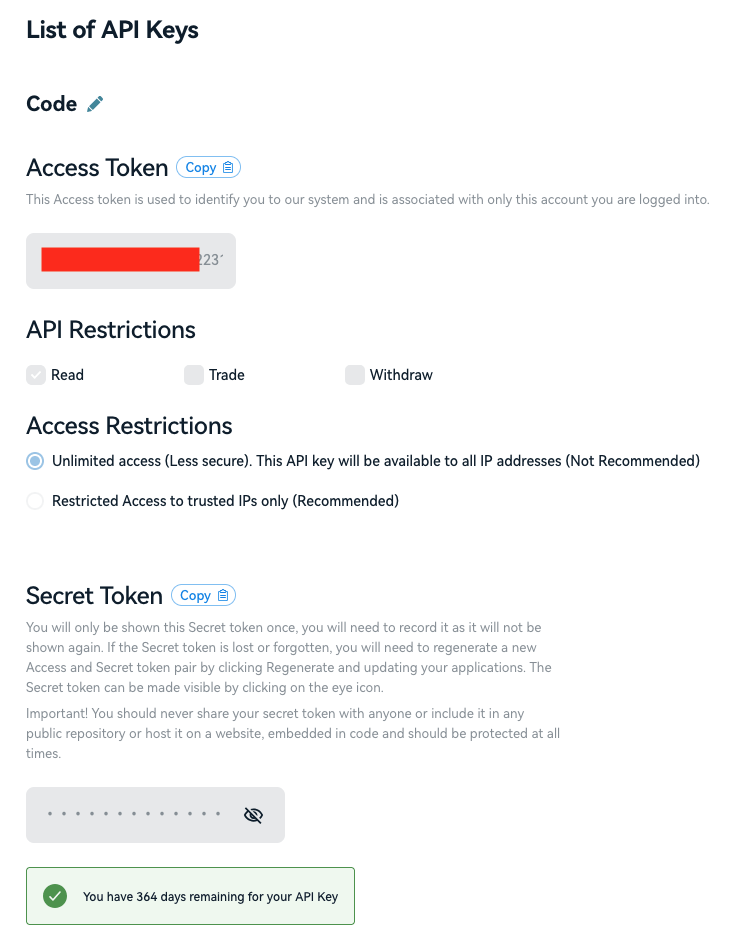
Important to know: KMSWorld will use API keys to import transactions only and will not store keys in the DB. If you want to do the import again, you have to copy and enter keys next time again. As you can see from the screenshot, Kinesis API keys will automatically expire in 364 days after initialization. After they expire, you will simply delete and reset keys to new values. All courtesy of the Kinesis KMS system. 

Kinesis KMS API keys page

API keys at your convenience

Copy Access token into Public Key box in KMSWorld box. Copy button is there.
Copy Secret Token into Private Key box in the KMSWorld screen. Copy button is there.
Click Import Now.
You are done! 

Exchange rates

For your convenience.

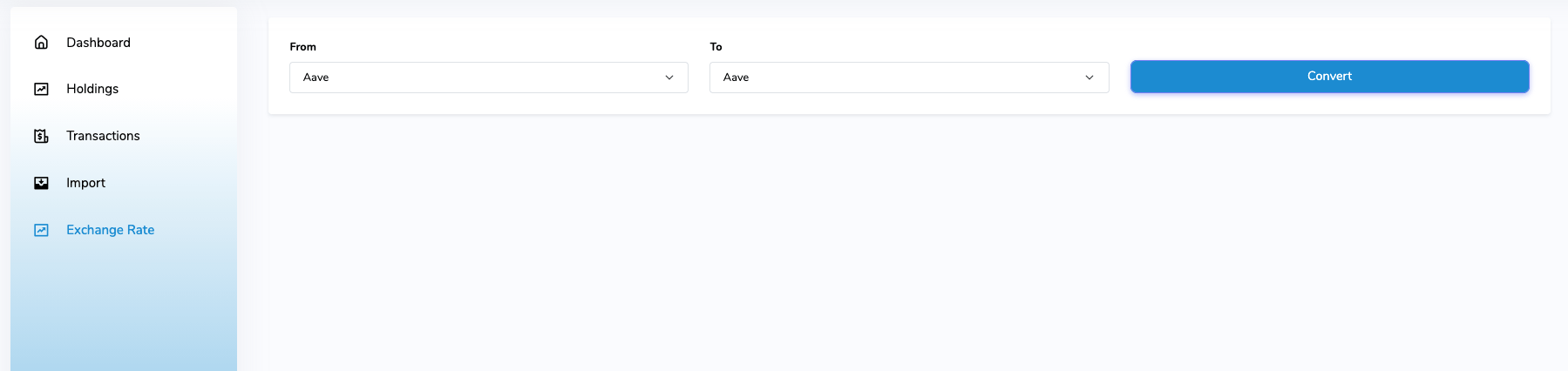
Last menu item are exchange rates. They are for information purposes only and are fed to DB by outside financial source.

AI Website Generator